Configure Karmika Auto Start on Windows
Follow the steps below to make Karmika start automatically when you sign in to Windows.
Requirements
- Karmika must already be installed.
- You should be able to open Karmika normally from Windows.
- You should have access to the Windows desktop.
1. Open the Run Dialog
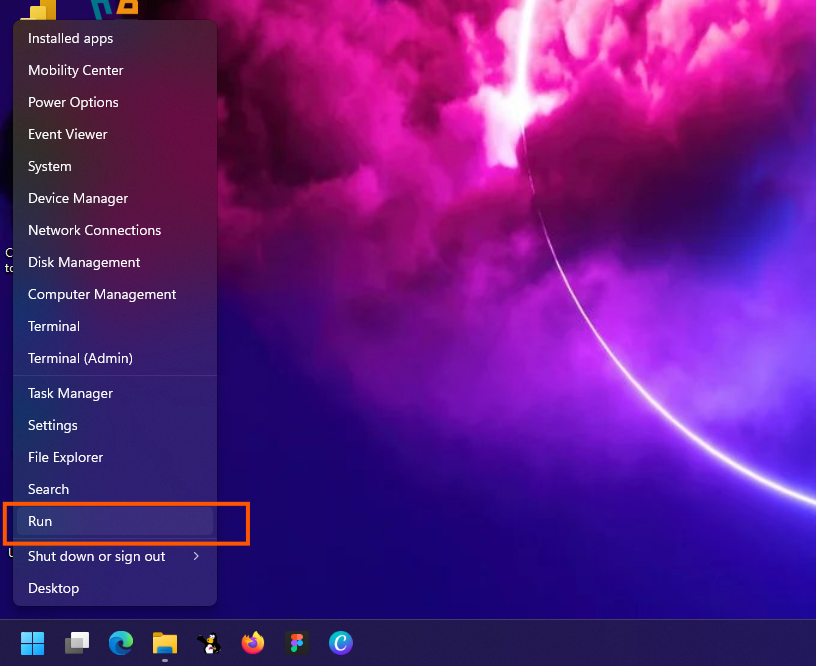
Right-click on the Start button and select Run.
2. Open the Applications Folder
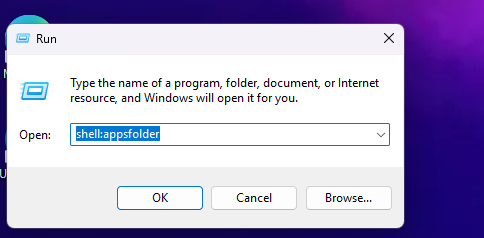
shell:appsfolder
Then press Enter.
A File Explorer window will open, showing the applications installed on the device. Keep this window open.
3. Open the Run Dialog Again
Right-click on the Start button again and select Run.
4. Open the Startup Folder
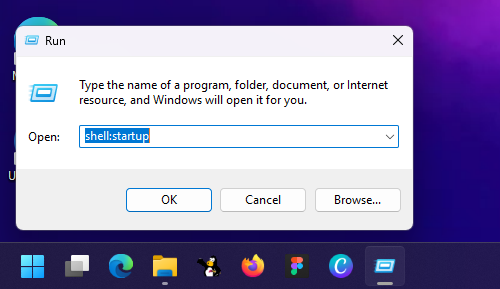
In the Run dialog box, type one of the following:
shell:startup
Then press Enter.
A second File Explorer window will open. This window contains the applications that start automatically when a user signs in.
5. Add Karmika to Startup
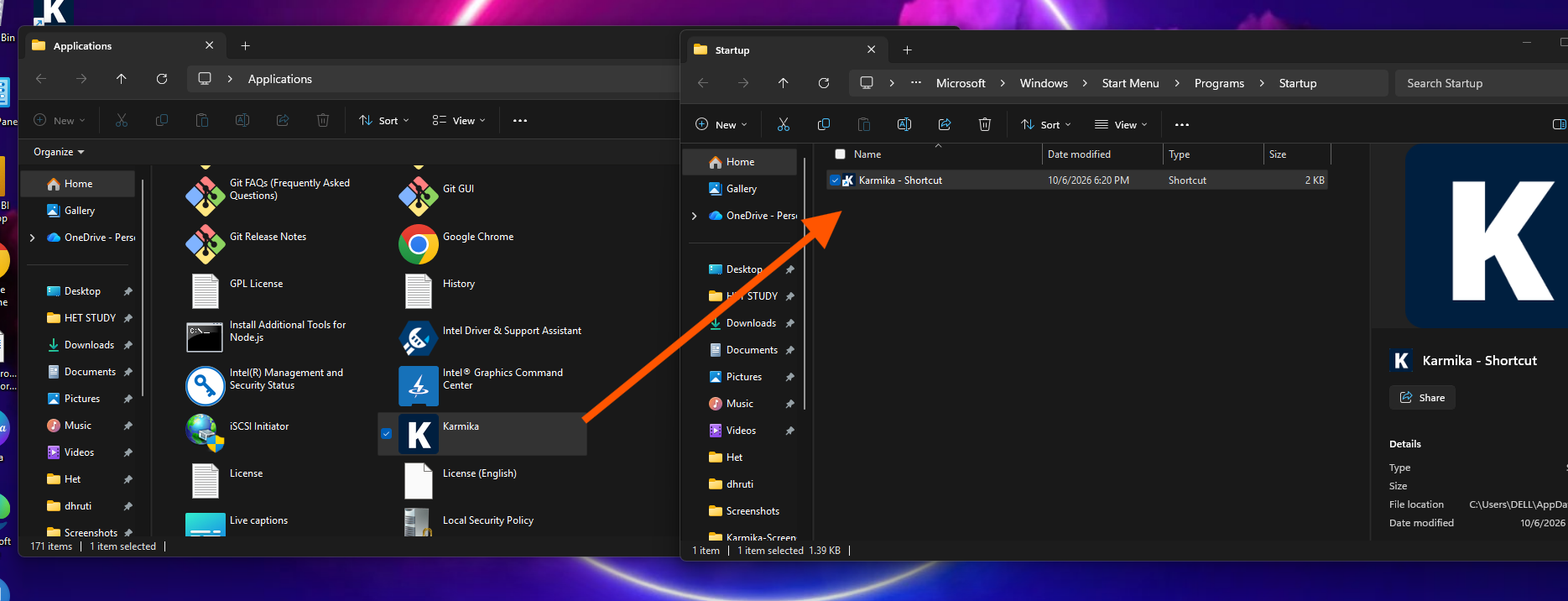
In the first File Explorer window, locate Karmika.
Then drag and drop Karmika from the first window into the second Startup folder window.
After doing this, Karmika will start automatically whenever the user signs in to Windows.
Need Help?
If you have not received the Karmika Auto-Start Script, or you experience any issue during setup, please contact our team.